cd ..
EN
DevOps
Resurrecting the Old: Mastering 'IE Mode' in Edge for Your CCTV Infrastructure
R
Rodolfo Echenique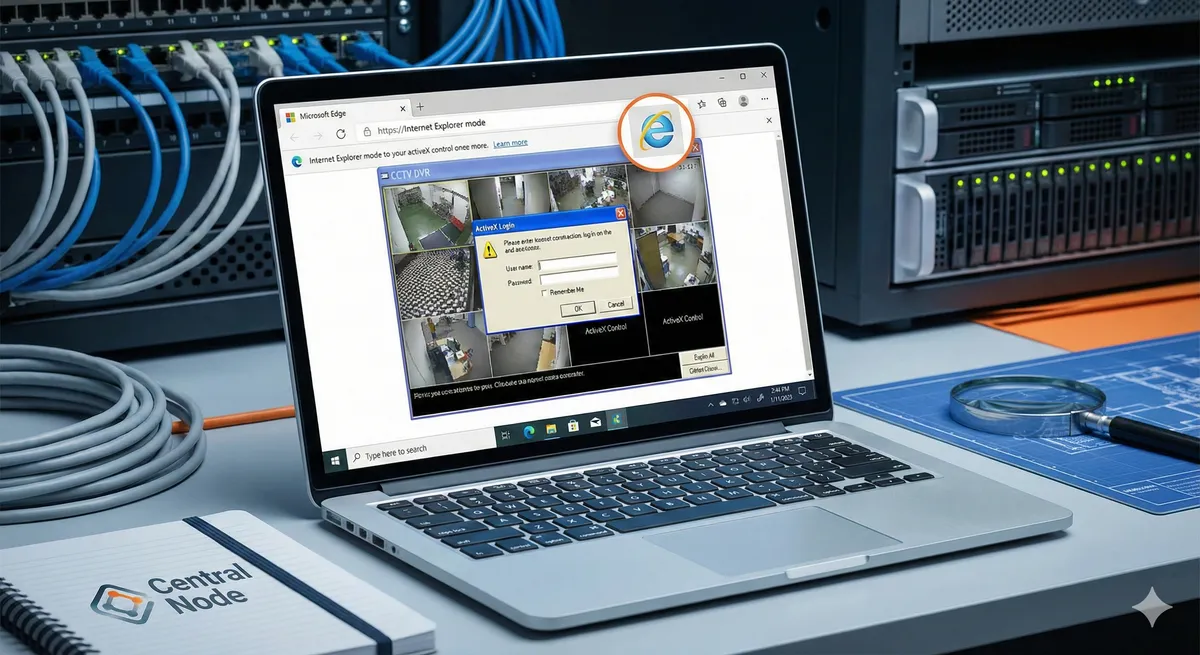
Automated Translation: This article was originally written in Spanish and translated by Gemini AI.
Technical Guide to Recover Access to DVRs, NVRs, and Legacy Systems
Engineer's Note: In an ideal world, all systems would be updated to HTML5. In the real world, that 8-year-old PTZ camera or critical DVR still relies on ActiveX. Here at Central Node, we understand that "updating" is not always an immediate option, so we show you how to manage compatibility securely and professionally.
One of the most common headaches in network administration is accessing the web interfaces of Legacy (old) equipment. Devices like DVR/NVR or CCTV security cameras were designed in an era where Internet Explorer was king and ActiveX plugins were the norm.
Today, with IE retired, Microsoft Edge offers a robust solution: Internet Explorer Mode. Below, we explain how to configure it correctly to create functional shortcuts and avoid the frustration of the "blank screen".
The Correct Procedure (Best Practices)
Although there are old tricks that modify the shortcut command line (using --ie-mode-force), recent Windows 11 updates have made these methods unstable. The professional approach is to use Edge's Internal Compatibility List. Follow these steps:
1. Enable IE Integration
First, we must tell the Chromium engine that it has permission to "invoke" the old engine.
- Open Microsoft Edge.
- Go to Settings (click on the three dots ... top right).
- In the side menu, select Default browser.
- Look for the Internet Explorer compatibility section.
- Change the option "Allow sites to be reloaded in Internet Explorer mode" to Allow.
- Restart the browser to apply the changes.
2. Configure the Permanent "Whitelist"
This is the key step many omit. Instead of manually activating IE mode every time, we will tell Edge to remember your DVR.
- Navigate to the IP address or domain of your camera/DVR (you will probably see that it doesn't load correctly).
- Go to the three-dot menu and select "Reload in Internet Explorer mode".
- When the page reloads, you will see an Internet Explorer icon in the navigation bar. Click on it.
- Toggle the switch: "Open this page in Internet Explorer mode next time".
- Click Done.
Technical Note: For security, this "memory" lasts 30 days by default for local users. If you manage a corporate network, at Central Node we recommend using an Enterprise Site List via GPO (Group Policies) to make it permanently indefinite.
3. Create the Desktop Shortcut
Now that Edge already knows how to handle your device, we create the standard shortcut.
- Right-click on your desktop > New > Shortcut.
- In the location field, paste the URL of your device. Example:
http://192.168.1.100 - Give it a clear name, for example: "Warehouse Cameras (IE Mode)".
- Finish.
Upon double-clicking, Edge will open the URL and immediately detect that it is on its "Whitelist" (Step 2), automatically switching the rendering engine.
Functionality Verification
To ensure everything is working up to expected standards:
- You should see a small notification bar below the address bar indicating that you are in "Internet Explorer Mode".
- The cameras' ActiveX controls should request installation or execute correctly.
- If the interface looks "broken," try activating Compatibility View within the emulation tools (F12) or verify that you do not have active pop-up blockers for that local IP.
Do Your Security Systems Need a Network Audit?
At Central Node, we don't just configure browsers; we design the infrastructure that keeps your business secure, connected, and operational. From VLAN segmentation for your cameras to perimeter cybersecurity.
SysAdmin Central Node Networking CCTV Microsoft Edge Legacy Systems IT Support NVR DVR Seguridad Informática Infraestructura Windows 11 ActiveX Compatibilidad Redes Tech Tutorial Troubleshooting Operaciones IT Mantenimiento