cd ..
EN
DevOps
Panic in Docker! How to Save Data from a Production Container Without Volumes
R
Rodolfo Echenique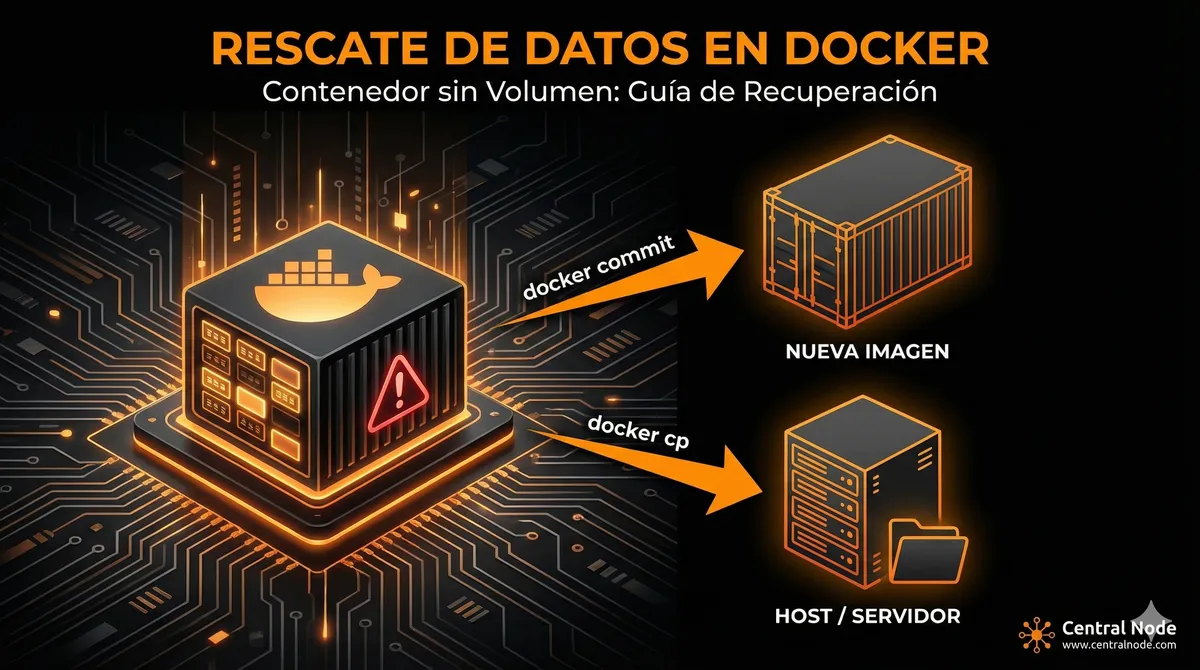
Automated Translation: This article was originally written in Spanish and translated by Gemini AI.
Has this happened to you? You launched a container "just to quickly test something," time passed, the service went into production, and suddenly, you realize a critical error: you didn't assign it a volume.
Now you have real, valuable data living dangerously in the writable layer (writable layer) of the container. If that container is deleted, the data goes with it. It's a delicate situation, but don't panic. Your data can be saved.
Below, I explain the two most effective and concise ways to rescue that information before it's too late.
Option 1: Creating a New Image (The Fastest Option)
This strategy works like a "snapshot." We are going to convert the current state of your container—with all the data it has accumulated—into a new Docker image.
Steps:
-
Identify the container:
First, you need to know the ID or name of the container that is running.docker ps -
Stop the container (Recommended):
To prevent data inconsistencies (where new things are written while saving), it is ideal to pause it momentarily.docker stop <container_name_or_id> -
Create the commit:
This command will save the entire container as a new image.docker commit <container_name_or_id> <new_image_name>:<tag>Example:docker commit prod-app-container produccion-backup:v1
The result: Now you have an image called . This image contains your application and the data generated so far. You can use it to launch a new container, but this time, make sure to mount a volume so as not to repeat history.
produccion-backup:v1Option 2: Extracting Data to the Host (The Surgical Option)
If you prefer to take out the "raw" files to save them in a folder on your server (Host) and then inject them into a clean volume, the command is your best friend.
docker cpSteps:
-
Locate the internal path:
You must know exactly which folder inside the container the data is being saved (for example:or/var/www/html/data)./var/lib/mysql -
Copy the data to the Host:
Execute the following command to extract the files from the container to your operating system.docker cp <container_name_or_id>:<path_in_container> <path_on_host>Example:docker cp prod-app-container:/var/www/html/data /home/user/data_backup
The result: Your data is now safe in the folder on your server.
/home/user/data_backupWhat Do I Do Now?
Once you have secured the data using either of the two methods, the next step is to recreate the container correctly.
Whether using the new image (Option 1) or mounting the extracted folder (Option 2) via a bind mount or a named volume, you can sleep soundly knowing that your data persistence is guaranteed.
Pro Tip: Always define volumes in yourordocker-compose.ymlcommands from day 1, even for testing. It’s better to prevent than to rescue!docker run
Did this tip help you? Share it with that colleague who lives life on the edge with their containers..