cd ..
EN
DevOps
Optimization in Windows 11: Restore the Classic Context Menu
R
Rodolfo Echenique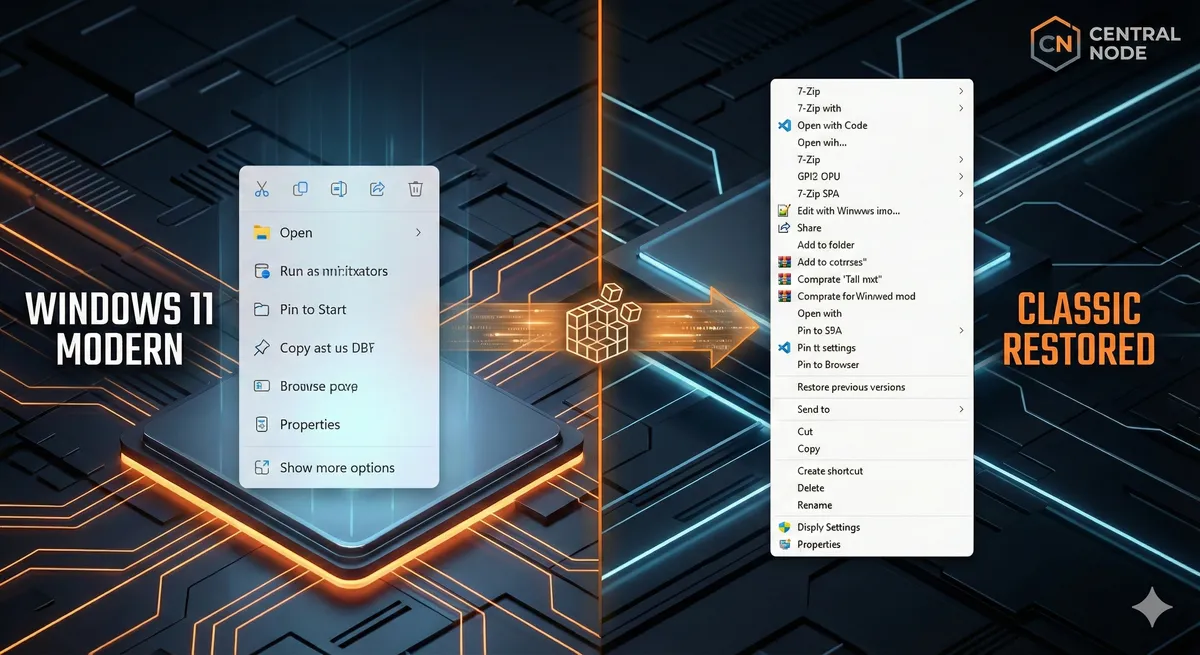
Automated Translation: This article was originally written in Spanish and translated by Gemini AI.
Windows 11 introduced a simplified context menu with the intention of reducing visual clutter and improving performance. However, for advanced users, system administrators, and IT professionals, this often translates into unnecessary friction when accessing third-party tools (such as 7-Zip, network utilities, or development tools) that have not yet integrated into the new design.
Fortunately, the classic "engine" is still down there, and with a precise registry tweak, we can bring it back as the default option.
Professional Warning: The following procedure involves modifying the Windows Registry. Although the change is specific and low-risk in the current user branch (HKCU), always exercise caution when executing commands that alter system configuration.
Technical Guide: Restoring the Classic Menu
This method uses the command line to inject a specific key that "tricks" File Explorer into using the legacy interface.
1. Opening the Windows Terminal
We need a command-line interface. PowerShell or Command Prompt will work within Windows Terminal.
- Right-click the Start button.
- Select Terminal (or Windows Terminal in older versions). Administrator permissions are not strictly necessary for this current user change, but it doesn't hurt to have them.
2. Injecting the Registry Key
This command creates an empty entry in a specific CLSID (Class ID) key that intercepts the call to the new context menu.
Copy the following command precisely, paste it into the terminal, and press Enter:
reg.exe add "HKCU\Software\Classes\CLSID{86ca1aa0-34aa-4e8b-a509-50c905bae2a2}\InprocServer32" /f /ve
_If the command is successful, the terminal will display: "The operation completed successfully."
3. Applying the Changes
The Registry has been updated, but the File Explorer process () which draws the desktop and menus needs to reload to read the new configuration.
explorer.exeOption A (Quick - Restart Explorer):
- Press Ctrl + Shift + Esc to open the Task Manager.
- Look for Windows Explorer in the process list (usually at the bottom if you have folders open).
- Right-click it and select Restart. The taskbar will flicker momentarily.
Option B (Safe): Simply log out and log back in, or restart the computer.
How to Revert the Change? (The "Undo" Button)
At Central Node, we believe in always having a rollback plan. If you decide you want to return to the modern Windows 11 look, we simply need to delete the key we created. Execute this command in the terminal:
reg.exe delete "HKCU\Software\Classes\CLSID{86ca1aa0-34aa-4e8b-a509-50c905bae2a2}" /f
After executing it, restart File Explorer again as in step 3 to recover the modern menu.
Conclusion
Customizing the working environment is key to productivity. This technical adjustment returns immediate control over all the context menu options you are used to, eliminating unnecessary clicks.
If your company needs to optimize work environments, standardize configurations, or improve the efficiency of IT infrastructure, Central Node specializes in tuning technology so it works for you, not the other way around.
SysAdmin CLI Central Node IT Support Windows 11 Tech Tutorial Productivity Hack Registry Tweak Classic Menu Windows Tips Workflow Optimization Right Click Menu Power User Regedit Windows Customization IT Infrastructure