cd ..
EN
DevOps
Frozen Proxmox Installation with NVIDIA: The Definitive GRUB Solution
R
Rodolfo Echenique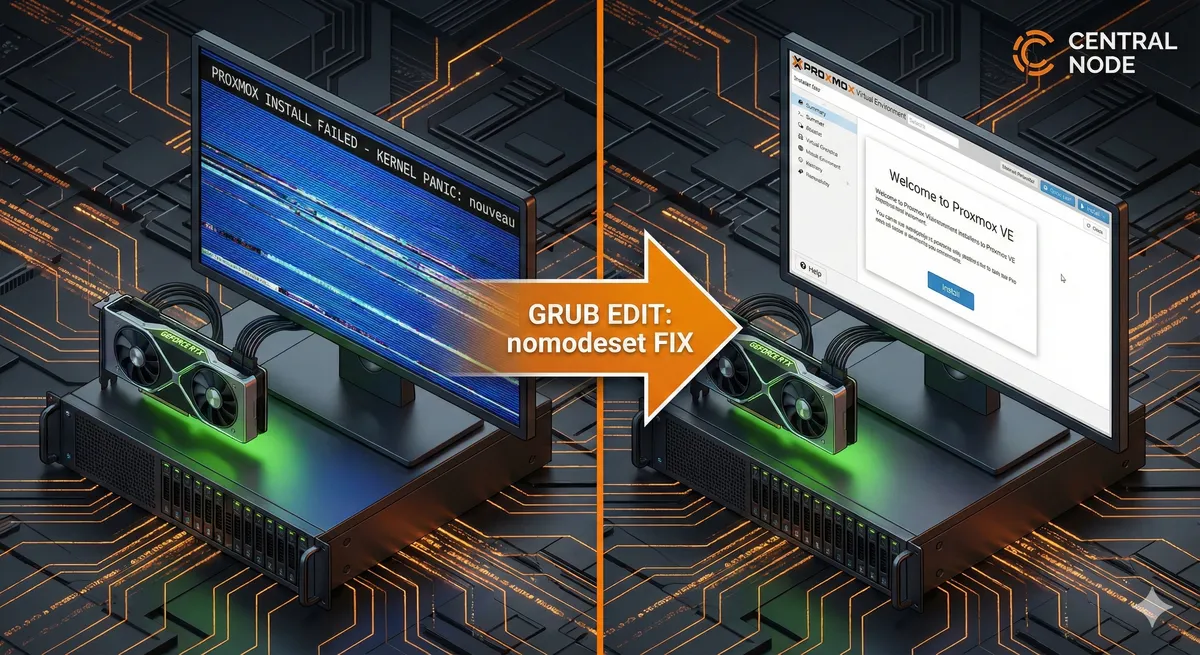
Automated Translation: This article was originally written in Spanish and translated by Gemini AI.
As a Network Engineer at Central Node, I have seen countless infrastructure deployments stop dead in their tracks due to an unexpected culprit: the graphics card. If you are trying to install Proxmox VE from a Live USB on a machine with an NVIDIA GPU and the system hangs upon booting, you are not alone. This is a classic conflict between the hardware and the kernel's open-source drivers.
The problem lies in the fact that the Proxmox installer (based on Debian) attempts to load the open-source driver for your NVIDIA card during early boot. This driver often fails to initialize modern cards or specific configurations, causing the system to freeze before even displaying the installation wizard.
nouveauFortunately, the solution is simple: we must instruct the Linux kernel to temporarily ignore advanced graphics management. Here is how to "hack" the GRUB before installation to avoid these problems.
Symptoms of the NVIDIA/Nouveau Conflict
If you experience one or more of these symptoms when attempting to boot the Proxmox installer, this guide is for you:
- The system freezes completely during the first lines of boot text.
- The installation gets stuck indefinitely on the message "Loading initial ramdisk...".
- The screen turns black, loses signal, or displays graphical artifacts and "NVIDIA kernel" errors.
Technical Guide: Modifying GRUB on Live USB Boot
The goal is to add the parameter. This instructs the kernel not to attempt to configure advanced video modes and instead use basic VESA drivers—just enough to complete the installation.
nomodeset1. Interrupting the Boot Process in GRUB
Connect the Proxmox Live USB and power on the machine. When the blue Proxmox boot menu (the GRUB) appears, select the default installation option ("Install Proxmox VE") but DO NOT press Enter.
Instead, press the e key on your keyboard. This will open a basic text editor that allows you to modify the boot parameters for that session.
2. Editing the Kernel Parameters
Use the arrow keys to navigate. Look for the line that starts with (or sometimes ). It will look similar to this (exact details may vary by version):
linuxlinuxefilinux /boot/vmlinuz-x.x.x-amd64 root=ZFS=rpool/ROOT/pve-1 boot=zfs quiet splash=silentThe main correction: Move the cursor to the end of that line and, after a space, add nomodeset. Make sure there is a space separating it from the other parameters. The line should look like this:
linux /boot/vmlinuz-x.x.x-amd64 root=ZFS=rpool/ROOT/pve-1 boot=zfs quiet splash=silent nomodeset💡 Central Node Expert Tip (Optional):
If you are installing Proxmox, you are likely planning to use virtualization. It is an excellent practice to immediately add the parameters to enable IOMMU (necessary for PCI passthrough). You can add the following to the same line:
intel_iommu=on iommu=ptamd_iommu=on iommu=ptNote: This does not fix the video, but it prepares your host for advanced virtualization.
3. Booting with Temporary Changes
Once you have edited the line, press CTRL + X or F10 (depending on what the screen indicates) to boot with these modified parameters.
The installer should now start at a lower resolution, but without freezing, allowing you to complete the Proxmox VE installation.
Alternative Solution: Brute Force against Nouveau
If the parameter is not sufficient (rare, but possible on certain hardware), you can try to be more aggressive and explicitly prohibit the loading of the problematic driver.
nomodesetIn the same GRUB editing step, instead of (or in addition to) , add:
nomodesetmodule_blacklist=nouveau
This forces the kernel to blacklist the Nouveau driver, preventing its execution.
Conclusion and Next Steps
Modifying the installer's GRUB is the master key to overcoming conflicts with NVIDIA GPUs during Proxmox deployment. It is important to remember that this change is temporary and only affects the installation process.
Once Proxmox is installed and you boot from the hard drive, the system will attempt to load the default drivers again. If the installed system hangs, you will need to repeat this process in the installed system's GRUB and, subsequently, make the change permanent by editing the file and running within your new Proxmox host.
/etc/default/grubupdate-grubDo you need help configuring your virtualization cluster or are you experiencing issues with specific hardware in your infrastructure? At Central Node, we are experts in taming hardware for high-availability environments.
SysAdmin Troubleshooting InfraestructuraIT CentralNode ProxmoxVE NVIDIA LinuxBoot GRUB Virtualization NouveauDriver Nomodeset KernelPanic InstallFix BareMetal Debian