cd ..
EN
Backend
Complete Guide to Migrating Documents from Google Drive to OneDrive using Rclone
R
Rodolfo Echenique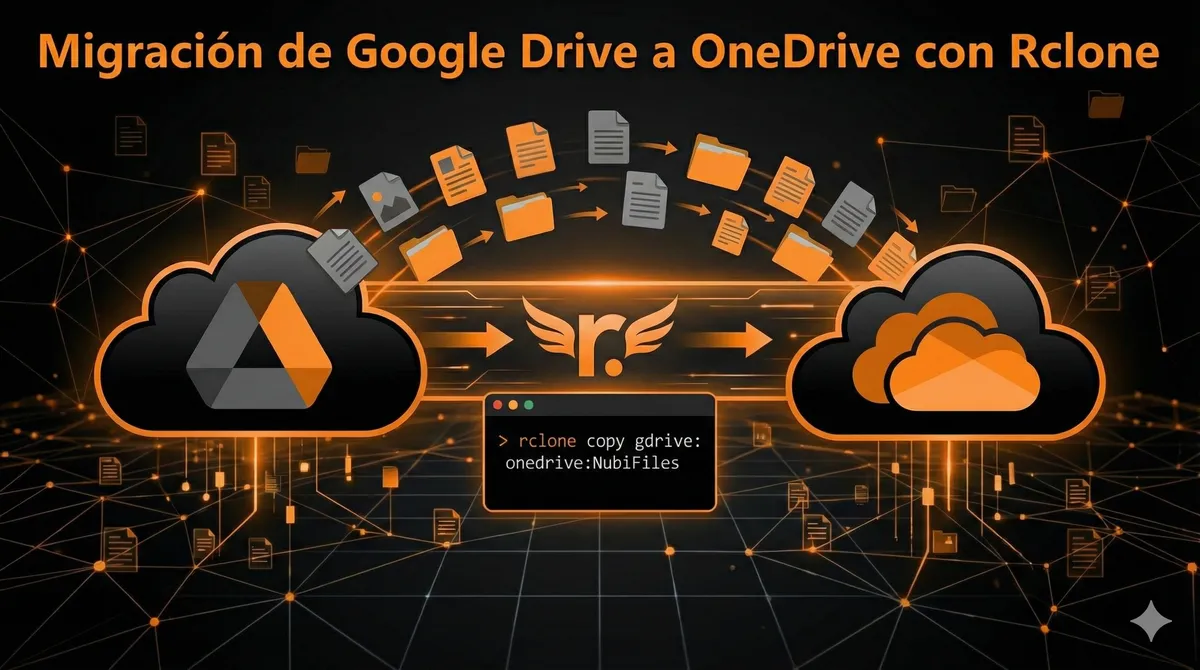
Automated Translation: This article was originally written in Spanish and translated by Gemini AI.
Do you need to move your files from Google Drive to OneDrive efficiently and securely? Don't worry! Although it might seem like a complex task, the command-line tool Rclone makes migrations between cloud storage services incredibly simple.
In this guide, we will explain step-by-step how to use Rclone to copy all your documents from Google Drive to a specific folder in OneDrive.
What is Rclone?
Rclone is a powerful open-source tool that allows you to manage, synchronize, and copy files to and from more than 70 cloud storage services, including Google Drive, OneDrive, Dropbox, S3, and many more. It is known for its efficiency and its ability to perform transfers directly between cloud servers, without passing through your local computer.
Step 1: Install Rclone
The first step is to have Rclone on your system. Follow the instructions according to your operating system:
On Windows:
- Visit the official Rclone download site: https://rclone.org/downloads/
- Download the ZIP file for your version of Windows (64-bit or 32-bit).
- Unzip the contents of the ZIP file to an easily accessible location, for example, .
C:\rclone - To be able to run from anywhere in your command line, add the path where you unzipped it (e.g.,
rclone) to the PATH environment variable. You can do this by searching for "Edit the system environment variables" in the Windows Start menu, then in "Environment Variables," select "Path" under "System variables" and add the new path.C:\rclone
On macOS:
Open your terminal and run:
brew install rclone
On Linux:
Open your terminal and run:
sudo -v ; curl https://rclone.org/install.sh | sudo bash
Step 2: Configure the Connection to Google Drive (Remote)
A "remote" in Rclone is like a connection profile to one of your cloud services.
-
Open your Terminal (macOS/Linux) or Command Prompt/PowerShell (Windows).
-
Run the Rclone configuration command:
rclone config -
Follow the on-screen prompts:
- Press for
n.New remote - Enter a name for the remote, for example:
gdrive - When prompted for the storage type (), enter
Type(or the number corresponding to Google Drive in the list, usually 13).drive - For and
client_id, leave them blank. This will use Rclone's default values, which is the simplest approach.client_secret - For , choose option
scopefor1.Full access to all files and folders - For the following questions (root_folder_id, service_account_file, shared_with_me), leave them blank unless you have very specific needs.
- When asked , press
y/n auto config. A window will open in your browser asking you to log in to your Google account and authorize Rclone. Once authorized, Rclone will confirm the configuration in your terminal.y - If it asks about , press
team driveunless you are working with a Google shared drive.n - Finally, press to exit the configuration.
q
- Press
Step 3: Configure the Connection to OneDrive (Remote)
Now, configure the "remote" for your OneDrive account.
-
Run the configuration command again:
rclone config -
Follow the on-screen prompts:
- Press for
n.New remote - Enter a name for the remote, for example:
onedrive - When prompted for the storage type (), enter
Type(or the number corresponding to Microsoft OneDrive in the list, usually 26).onedrive - For and
client_id, leave them blank to use Rclone's default values.client_secret - For , choose the appropriate option (normally
scopefor OneDrive Personal or1for OneDrive for Business/SharePoint).2 - Rclone will ask you to choose the drive you want to use (for example, your personal OneDrive or one from your organization).
- For , press
Edit advanced config?.n - When asked , press
y/n auto config. A window will open in your browser asking you to log in to your Microsoft account and authorize Rclone. Once authorized, Rclone will confirm the configuration in your terminal.y - Finally, press to exit the configuration.
q
- Press
Step 4: Perform the Copy from Google Drive to OneDrive
With both remotes configured, we are ready for the copy! We will use the command. This command will copy files from the source to the destination, skipping those that already exist with the same size and modification date.
rclone copyThe general syntax is:
rclone copy <source> <destination> [flags]To copy all the content from the root of your Google Drive to a specific folder called in the root of your OneDrive, the command is:
NubiFilesrclone copy gdrive: onedrive:NubiFiles --progress --server-side-across-configs --log-file=rclone_nubi_copy_log.txt -v --transfers=8 --checkers=8
Explanation of the options:
- : Indicates that the source is the root of your Google Drive (the name you gave the remote followed by a colon).
gdrive: - : Indicates that the destination is the
onedrive:NubiFilesfolder within your OneDrive. If the folder does not exist, Rclone will create it automatically.NubiFiles - (
--progress): Shows a real-time progress bar so you can see the copy's advancement.-P - : This flag is crucial! It tells the cloud services to perform the transfer directly between their servers, without the files passing through your machine. This is much faster and does not consume your local bandwidth. It is the successor to
--server-side-across-configsfor copies between different cloud providers.--drive-server-side-copy - : Saves a detailed log of the operation in a text file (
--log-file=ruta/a/log.txt). This is very useful for reviewing the process, debugging errors, or confirming the list of copied files.rclone_nubi_copy_log.txt - : Activates "verbose" mode, showing more details about the operation in your terminal.
-v - : Tells Rclone to attempt to transfer up to 8 files in parallel. This can speed up the copy, but do not increase it too much to avoid overwhelming the cloud service APIs.
--transfers=8 - : Controls the number of parallel hash checks, also to speed up the process.
--checkers=8
Always do a dry-run first! (Simulation)
dry-runBefore executing the real copy command, it is HIGHLY RECOMMENDED that you perform a simulation. This will show you which files would be copied without making any actual changes:
rclone copy gdrive: onedrive:NubiFiles --dry-run --server-side-across-configs -v
If the shows what you expect, then you can execute the real command.
dry-runImportant Considerations
- Folder Paths: Ensure that the paths to the folders in Google Drive and OneDrive are correct. You can use and
rclone ls gdrive:to list the contents of your remotes and verify the paths.rclone ls onedrive: - API Limits: Cloud services have limits on the number of requests. Rclone is designed to handle this, but if you copy many small files very quickly, you might encounter temporary errors that Rclone usually retries.
- vs.
copy: For your "copy everything" scenario,syncis the safest option. Therclone copycommand would make the destination identical to the source, meaning it would delete files in the destination that are not in the source. Use it with extreme caution!rclone sync
With this guide, you can effectively migrate your documents from Google Drive to OneDrive. If you have any questions, feel free to leave them in the comments!