cd ..
EN
Networking
Invisible Security: How to Expose Your Services Using Cloudflare Tunnel and Docker
R
Rodolfo Echenique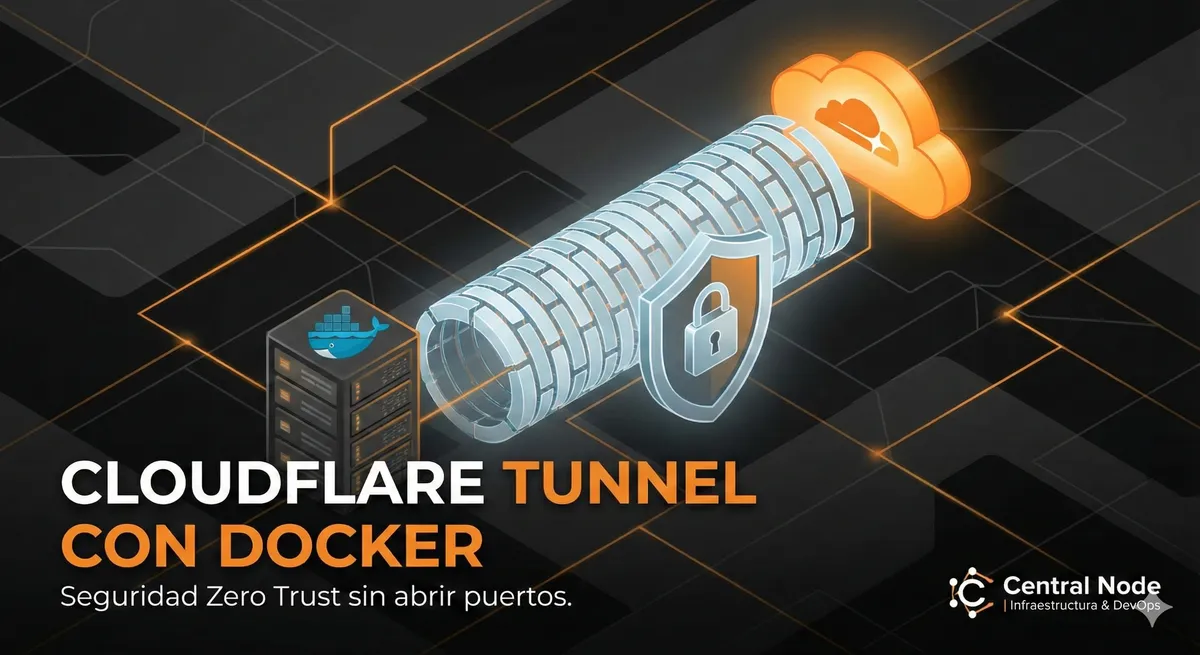
Automated Translation: This article was originally written in Spanish and translated by Gemini AI.
In the world of networking, opening ports on your router's firewall to expose a web service is the digital equivalent of leaving your front door open because the cat wants to go out: it works, but anyone (or anything) can enter.
For years, we dealt with dynamic public IP addresses, complex NAT configurations, and unnecessary security risks. As Network Engineers at Central Node, we have seen too many servers compromised by forgotten exposed ports.
Today, the standard is Zero Trust. This is where Cloudflare Tunnel comes in. This tool allows your server to initiate a secure outbound connection to Cloudflare's global network, eliminating the need to accept incoming connections. It is invisible to port scanners and much safer.
How does it actually work?
Unlike the traditional model where traffic hits your firewall, here it is your server (using a Docker container called ) that "calls home" (Cloudflare Edge). Once the tunnel is established, traffic flows securely.
cloudflaredsubgraph "Your Local Infrastructure (Docker)"
style Connector fill:#333,stroke:#FF7F50,stroke-width:2px,color:#fff
style Nginx fill:#eee,stroke:#333,stroke-width:2px
Connector[Cloudflared<br/>Tunnel Daemon] -- Encrypted Tunnel --> CF
Connector -- Internal HTTP Traffic --> Nginx[Web Server / App]
end
Firewall[Corporate Firewall] -. Blocks all incoming traffic .- User
style Firewall fill:#ffebee,stroke:#c62828,stroke-dasharray: 5 5
Technical Prerequisites
For this lab, we assume you have basic terminal knowledge. You will need:
- An active domain managed in Cloudflare (it's free and essential).
- A server (VPS, Raspberry Pi, or your local PC) with Docker and Docker Compose installed.
- A desire never to configure Port Forwarding again in your life.
Step 1: Create the Tunnel in the Dashboard
First, we will generate the tunnel credentials. Cloudflare has simplified this enormously:
- Access your account and go to Zero Trust > Networks > Tunnels.
- Click on Create a tunnel.
- Select Cloudflared as the connector type.
- Give it a logical name (e.g., ).
srv-prod-docker-01 - Upon saving, you will see a section that says "Install and run a connector". Ignore the installation commands, we only need the Token. It is that long string of alphanumeric characters after . Copy it and save it as if it were gold.
--token
Step 2: The Architecture in Docker (The right way)
Instead of launching loose containers, we will use to orchestrate both the tunnel and our web service on the same virtual network. This ensures they can see each other by internal DNS name.
docker-composeCreate a directory for your project and inside it a file:
docker-compose.ymlversion: '3.8'
services:
# El Servicio Web (Lo que quieres exponer)
nginx-web:
image: nginx:alpine
container_name: mi_servidor_web
restart: unless-stopped
volumes:
- ./html:/usr/share/nginx/html
# Nota: No necesitamos 'ports' expuestos al host si solo usamos Tunnel
# networks: # Opcional si usas la red por defecto, pero buena práctica definirla
# El Agente del Túnel (La puerta de salida)
cloudflared:
image: cloudflare/cloudflared:latest
container_name: cloudflared_tunnel
restart: unless-stopped
command: tunnel --no-autoupdate run
environment:
- TUNNEL_TOKEN=TU_TOKEN_LARGO_AQUI_PEGALO_AQUI
depends_on:
- nginx-web
💡 Central Node Pro Tip: Never upload this file to a public repository with the token written in it. In production, use environment variables ().
.envNow, create the test content. Create an folder and inside it an :
htmlindex.html<!DOCTYPE html>
<html>
<body style="background-color: #1a1a1a; color: #ff7f50; font-family: sans-serif; text-align: center; padding-top: 50px;">
<h1>Connected via Central Node & Cloudflare</h1>
<p>This service is hidden behind a secure tunnel.</p>
</body>
</html>
Bring up the infrastructure:
docker-compose up -d
Paso 3: Magic Routing (DNS Configuration)
Your tunnel is live, but it doesn't know what to do with the traffic. Let's go back to the Cloudflare Zero Trust dashboard where we left the configuration open:
- Click Next to go to the Public Hostnames tab.
- Add a Public Hostname (e.g., ).
app.yourdomain.com - In Service, here's the trick:
- Type:
HTTP - URL:
mi_servidor_web:80
- Type:
Why ? Because Docker has an internal DNS. Cloudflared will look for the container by its name defined in the . If you used , the tunnel would try to connect to itself and fail.
mi_servidor_webdocker-compose.ymllocalhostConclusion and Analysis
You have just exposed a service to the Internet without touching your router configuration, without exposing your real public IP, and with end-to-end encrypted traffic. Furthermore, Cloudflare automatically protects you against DDoS attacks.
This architecture is the basis of modern operations. It is clean, portable, and secure.
Does your infrastructure need to scale?
Implementing a tunnel is the first step. At Central Node, we design resilient, secure, and automated network architectures for companies that cannot afford downtime.
Linux Infraestructura IT SysAdmin DevOps Central Node Networking Redes Cloudflare Tunnel Docker Ciberseguridad Nginx Zero Trust SelfHosting Docker Compose Web Server SSL Seguridad Web Cloud Computing Tutorial Técnico Automation