cd ..
EN
Security
🔒 How to Hide Only the "Shut Down" Button in Windows Server (without affecting other options)
R
Rodolfo Echenique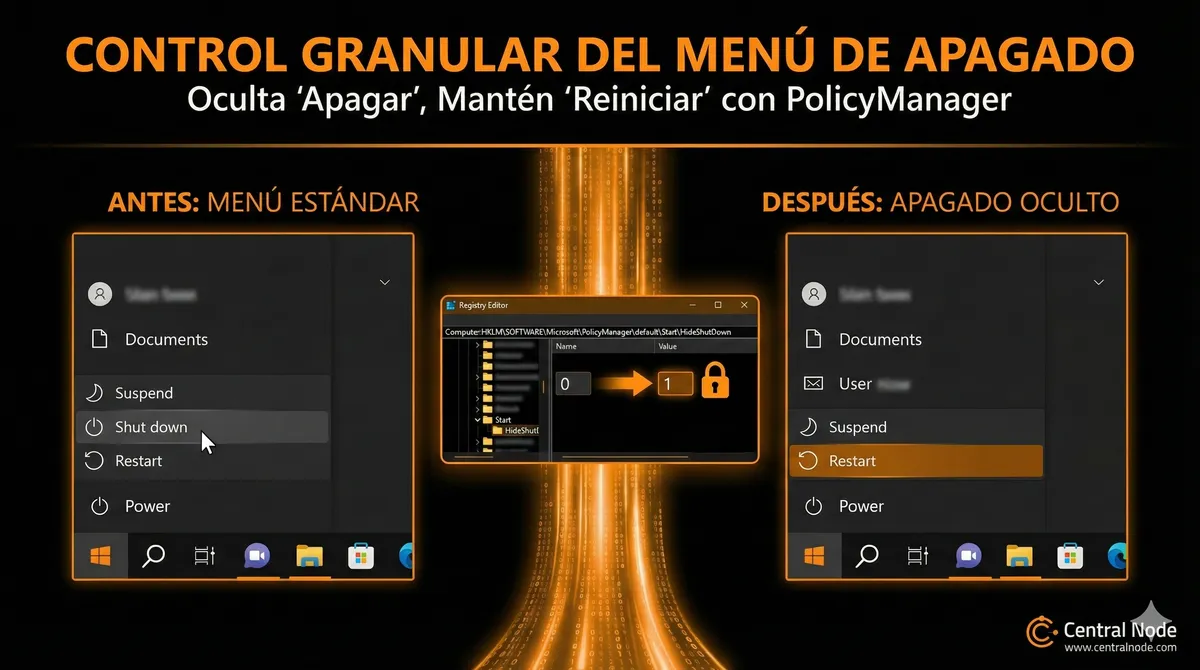
Automated Translation: This article was originally written in Spanish and translated by Gemini AI.
💡 Ideal for servers, virtual desktops, high-availability environments, and more
As system administrators, maintaining control over the environments we manage is not just a good practice: it is a critical necessity.
One of the most common—and potentially risky—situations occurs when a user, by mistake or ignorance, shuts down a server or remote access device. In multi-user or critical environments, this can mean loss of productivity or service interruption.
Until now, the best-known solution for blocking shutdown was to apply a GPO that removes all shutdown menu options: shut down, restart, suspend, hibernate.
But what if we want to hide only the "Shut Down" button and allow users to still restart the computer?
🎯 The solution: using PolicyManager from the Windows Registry
PolicyManagerStarting with modern versions of Windows 10, 11, and Windows Server, there is a much more granular and elegant way to control these options:
This involves using the key:
HKEY_LOCAL_MACHINE\SOFTWARE\Microsoft\PolicyManager\default\Start\HideShutDown
🔧 What does this key do?
Setting the value in hides only the “Shut Down” button from the Start menu and the lock screen, without affecting the “Restart” button or other options.
Setting the value
1HideShutDown🧰 Recommended Use Cases
- 🔌 Servers with RDP access: prevent an unintentional user from accidentally shutting down the server.
- 🖥️ Shared devices in Virtual Desktop Infrastructure (VDI): restarting is allowed, but total shutdown is not.
- 🧪 Devices running critical processes or monitoring: they can be restarted automatically, but must never be shut down manually.
- 🧭 Kiosks or public terminals: you need the system to remain powered on 24/7.
🛠️ How to Apply It?
✅ Option 1: Modify the Registry Manually
-
Open the Registry Editor ().
regedit -
Navigate to:
HKEY_LOCAL_MACHINE\SOFTWARE\Microsoft\PolicyManager\default\Start\HideShutDown -
If it doesn't exist, create:
- Key: (as a subfolder)
HideShutDown - DWORD Value:
value = 1
- Key:
✅ Option 2: Use PowerShell
New-Item -Path "HKLM:\SOFTWARE\Microsoft\PolicyManager\default\Start" -Name "HideShutDown" -Force
New-ItemProperty -Path "HKLM:\SOFTWARE\Microsoft\PolicyManager\default\Start\HideShutDown" -Name "value" -Value 1 -PropertyType DWord -Force
🔁 How to Revert It?
Change the value from to
10.🔄 Apply the Changes
After making the change, execute:
gpupdate /force
Or restart the process for the Start menu to update.
explorer.exe🧠 Conclusion
This solution allows you to maintain control over system availability, without limiting essential functionality for users.
It is a much more flexible option than traditional GPOs, ideal for scenarios where restarting is acceptable but shutting down is not.
It is a much more flexible option than traditional GPOs, ideal for scenarios where restarting is acceptable but shutting down is not.
Do you use these types of policies in your infrastructure? Would you like to see more practical tips like this?
🔁 Share it with your team or leave your comments.-
🔁 Share it with your team or leave your comments.-