cd ..
EN
Security
How to improve your device security by hiding local users in Windows
R
Rodolfo Echenique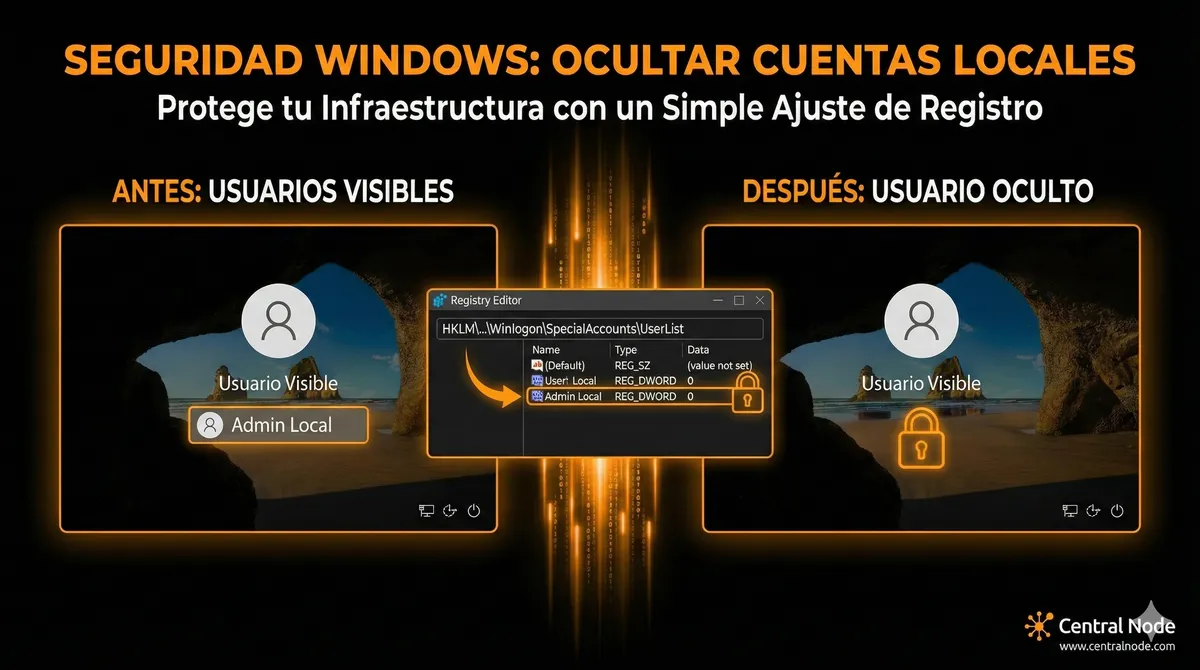
Automated Translation: This article was originally written in Spanish and translated by Gemini AI.
When we talk about computer security, sometimes the simplest details can make a huge difference. One of those details is the visibility of local users on the Windows login screen.
Why is this important?
If you have local accounts, especially those with administrator privileges, that appear on the login list, anyone with physical access to the computer knows those accounts exist. This facilitates attacks, password guessing attempts, or unauthorized access.
If you have local accounts, especially those with administrator privileges, that appear on the login list, anyone with physical access to the computer knows those accounts exist. This facilitates attacks, password guessing attempts, or unauthorized access.
The good news is that you can hide these accounts without deleting them, maintaining the possibility of logging in manually if you know the username and password.
Simple steps to hide a local user
- Open the Registry Editor (regedit).
- Navigate to the following path:
[HKEY_LOCAL_MACHINE\SOFTWARE\Microsoft\Windows NT\CurrentVersion\Winlogon\SpecialAccounts\UserList](https://www.google.com/search?ved=1t:260882&q=HKEY_LOCAL_MACHINE%5CSOFTWARE%5CMicrosoft%5CWindows+NT%5CCurrentVersion%5CWinlogon%5CSpecialAccounts%5CUserList&bbid=243247708054662517&bpid=604422588248305184)
If the SpecialAccounts or UserList folders do not exist, create them as a Key. - Inside UserList:
- Close the registry and restart or sign out for the changes to take effect.
What happens next
- The user will not appear in the lower left corner of the login screen.
- You will still be able to log in manually by typing the username and password.
Why this adds to your company's security
Hiding local accounts is a simple yet effective measure to protect your devices:
- It reduces the information potential attackers can see.
- It minimizes the exposure of accounts with administrative privileges.
- It reinforces the security policy without affecting productivity.
For managers, IT owners, and technical area leaders, these small adjustments help keep the infrastructure more secure, protecting critical data and reducing risks.-