cd ..
EN
Networking
🛡️ Secure Wipe: A Direct Guide for Managers, Administrators, and MSPs — HDD and SSD (Windows and Linux)
R
Rodolfo Echenique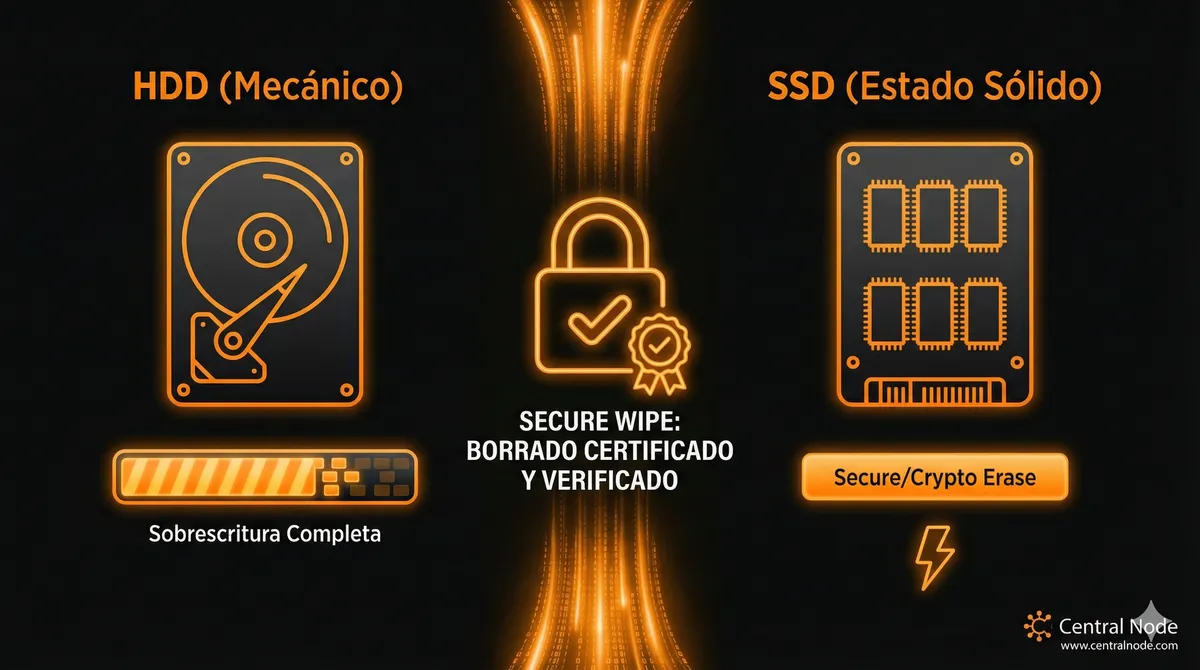
Automated Translation: This article was originally written in Spanish and translated by Gemini AI.
What every manager and administrator should know: when and how to perform a secure wipe physically and logically, differences between HDD/SSD, common risks, and professional options if you want to delegate without drama.
🎯 Why does secure wipe matter?
Quick summary: if you sell, recycle, or reassign equipment containing corporate or client data, insufficient erasure is a legal and reputational risk. It’s not enough to “delete files” or empty the trash — the information can still be recovered. Here I explain **what works**, **what doesn't**, and **how to do it correctly** in Windows and Linux environments, for mechanical drives (HDD) and solid-state drives (SSD).

📌 Key principles (get the manager's attention):
- Policy + traceability: Have a written policy stating when data is erased, who performs it, and how it is recorded (action log, records, photos, or hashes if applicable).
- HDD vs SSD Difference: HDDs allow complete overwriting; SSDs use controllers that make traditional overwriting less reliable — it is advisable to use manufacturer commands (secure erase / crypto-erase / nvme format).
- Testing and verification: Always verify (hashes, verification tools, or recovery attempts) and keep evidence that the device has been cleaned.
- Chain of custody record: If sensitive data is involved, document every step: who, when, how, and result.
🪟 Windows — Practical Methods
For HDD (Mechanical Drives)
-
Windows Built-in: Device Reset and Reinstallation: This might suffice for internal recycling, but it is not enough for sensitive data.
-
Recommended Tools: Use utilities that overwrite the entire disk (for example, certified erasure software — look for tools with standards like DoD 5220.22-M or NIST SP 800-88).
-
Example (Concept):
Uso de una herramienta comercial/ISO de borrado: bootear con el ISO, seleccionar el disco y ejecutar “full wipe / 1 pass”Note: avoid destructive commands without documentation. Document the operation.
For SSD (SATA / NVMe)
- Use the manufacturer's tool: Samsung, Intel, Crucial, and others offer utilities (Windows/Linux) that perform the secure erase at the firmware level.
- Crypto-erase / Secure-erase: If the drive supports hardware encryption, a quick encrypted format or key erasure (crypto-erase) is the fastest and safest option.
- Operational Recommendation: Before proceeding, verify the model and ATA/NVMe command support to avoid damaging the controller or invalidating the unit.
Windows Summary: For HDD you can use certified overwriting utilities; for SSD, always prefer the manufacturer's tool or encryption key erasure.
🐧 Linux — Practical Methods and Reference Commands
HDD
In Linux, classic tools work well for HDDs:
# Sobrescritura completa (ejemplo simple, cuidado con el disco correcto)
sudo dd if=/dev/zero of=/dev/sdX bs=1M status=progress

# Alternativa con patrones aleatorios:
sudo dd if=/dev/urandom of=/dev/sdX bs=1M status=progress
Important: dd overwrites the disk but can be slow. For regulatory compliance, use certified tools or multiple passes according to policy.
SSD (SATA)
For SATA SSDs, the command is the most common — it performs a firmware-level secure erase:
hdparm# Ejemplo conceptual (no lo ejecutes sin confirmar modelo y estado):
sudo hdparm --user-master u --security-set-pass Eins /dev/sdX
sudo hdparm --user-master u --security-erase Eins /dev/sdX
Precautions: The disk must not be frozen; work from a live USB or use manufacturer support. Document the process.
# Otra opcion si hdparm no funciona es:
sudo blkdiscard -F /dev/sdX
NVMe (Modern SSDs)
NVMe has its own utility: . It usually allows for secure formatting or erasure of the encryption key:
nvme-cli# Concepto:
sudo nvme format /dev/nvme0n1 --ses=1 # secure erase (syntax depende de la versión)
The syntax for depends on the controller and version; consult the manual and test on a non-critical machine first.
nvme format⚖️ Quick Comparison: HDD vs SSD
Aspect
HDD
SSD
Effective Method
Complete Overwriting (dd, certified tools)
Firmware Secure-erase / crypto-erase / nvme format
Time
Slow on large drives
Fast if correct method is used
Verifiability
High (post-read)
Variable — use manufacturer and recovery test
⚠️ Common Risks and How to Avoid Them
- Erasing the wrong disk: Always verify the identifier (, serial number) and take photos/recordings beforehand.
/dev/sdX - Disk “frozen” or in a state that prevents secure erase: Restart, use live USB, or manufacturer tools.
- Assuming that “format C:” is enough: It is not. Formatting does not mean overwriting physical sectors.
- Not documenting the process: If audited, you need evidence. Save logs, captures, and the responsible person’s signature.
🛠️ Recommended Procedure (Operational Template)
- Inventory and classification: Identify device (model, serial, type, who the user was).
- Decide method: HDD → overwriting; SSD → secure-erase or crypto-erase depending on support.
- Prepare secure environment: Live USB, updated tools, network disconnection if applicable.
- Execute erasure and record output: save logs and captures.
- Verification: attempt recovery with light forensic tools (for verification only) and keep a record.
- Issue destruction/erasure certificate: signature and date by the responsible party.
🧰 Tools and Resources (Quick)
- Linux: dd, hdparm, blkdiscard, nvme-cli.
- Windows: Official manufacturer utilities (Samsung Magician, Intel SSD Toolbox), certified erasure ISOs; commercial solutions (Blancco, KillDisk Pro).
- For verification: forensic tools (for checking only—not as sole evidence), reports and hashes.
Note: Specific options depend on the model and firmware; always confirm compatibility before executing commands that modify firmware or cryptography.
💼 Want to Delegate Without Risk?
If you prefer not to risk sensitive data or waste time: we offer professional secure wipe, audit, and evidence services. Service delivery includes: inventory, certified execution (depending on disk type), basic forensic verification, and a destruction/erasure certificate ready for audit.
Hire our services: [email protected] — or use the website form for a quick quote. 🚀
Disclaimer: This guide is informative and technical. Before executing any command in production, test it in a controlled environment and document everything. If you handle data subject to regulation (PI, financial, or health data), follow the applicable regulations (e.g., GDPR, NZ Privacy Act, etc.).-